
ESP32 PWM Output
This article details how to utilize ESP32's PWM feature to manage LED brightness, covering components, code, and testing.
This article explains how to use the Pulse Width Modulation (PWM) functionality of ESP32 to control the brightness of an LED.
Introduction
The ESP32 Arduino environment doesn't have the common analogWrite Arduino function. So, we need to use low-level functions as shown in this tutorial. But this gives us more control and flexibility in PWM.
In terms of hardware, the ESP32's LED PWM has 16 independent channels with configurable duty cycles and wave periods. The duty cycle's precision can be set up to a 16-bit resolution.
Components List
- ESP32 development board
- One LED (I'm using a 5mm red LED)
- Breadboard
- Several jumper wires
Circuit Diagram
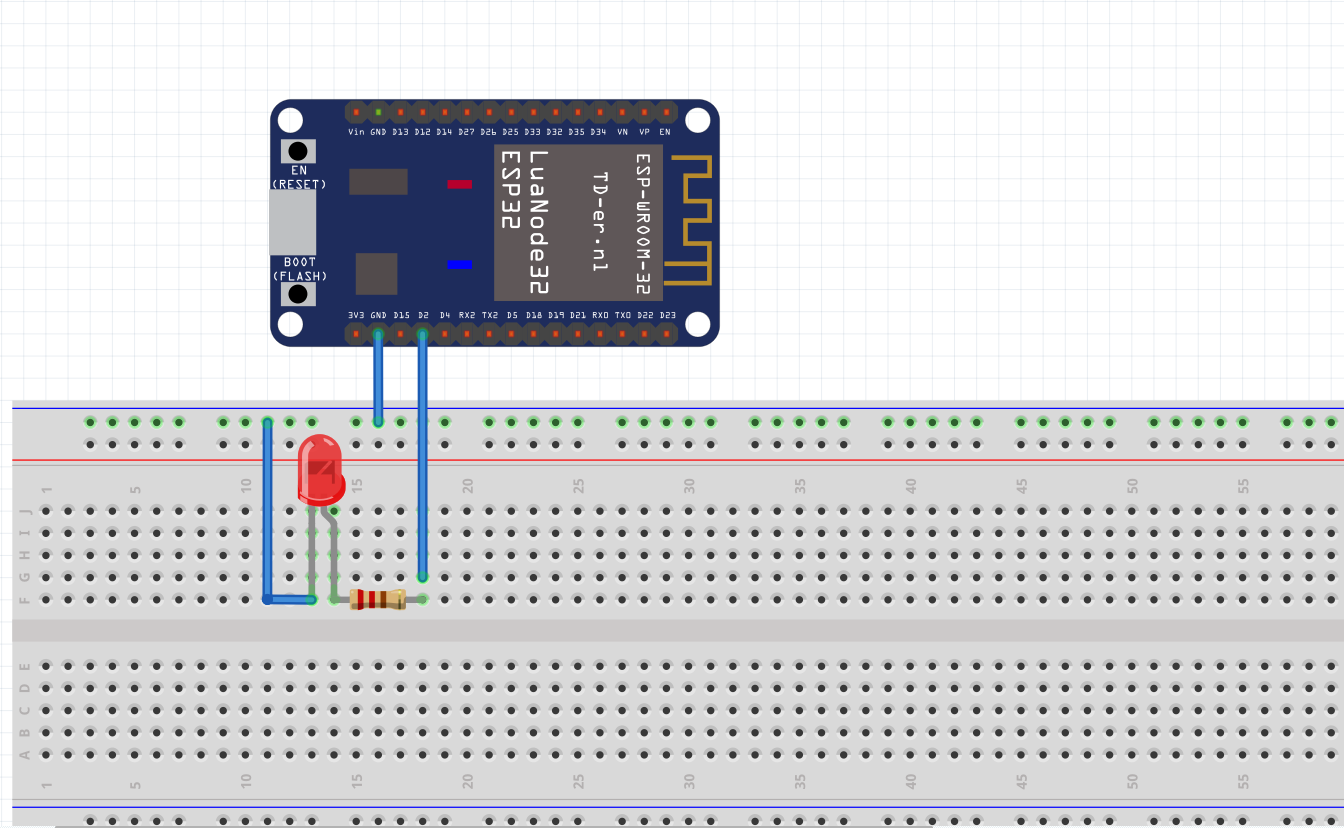
Code Design
1. Initialization Setup
In the initial part of the code, we define some global configuration constants. The first one is the frequency of the PWM signal for controlling the LED. We'll use 5000Hz. But note that the maximum frequency isn't clear and depends on the chosen resolution, as stated in the header file of the function we'll use.
We'll specify the LED PWM channel and the resolution in bits. From the header file, we can see that we can select a channel from 0 to 15 and a resolution from 1 to 16 bits. Here, we'll use channel 0 and an 8-bit resolution.
int freq = 5000;
int ledChannel = 0;
int resolution = 8;
Next, in the setup function, we configure the LED PWM. First, we need to set the channel, frequency, and resolution we specified. We do this by calling the ledcSetup function, which takes the three parameters mentioned above in the same order.
ledcSetup(ledChannel, freq, resolution);
It's important to note that the channel isn't the GPIO pin controlling the LED. So, we need to connect channel 0 (the one we defined) to the digital GPIO pin where we want to generate the PWM signal. In my case, I'm connecting it to GPIO pin 2. We use the ledcAttachPin function, passing the GPIO pin number and the previously defined PWM channel as arguments.
ledcAttachPin(2, ledChannel);
Here's the complete initialization setup along with constant definitions:
#define LED_PWM 2 // Define the GPIO pin being used for the call
int freq = 5000;
int ledChannel = 0;
int resolution = 8;
void setup() {
    ledcSetup(ledChannel, freq, resolution);
    ledcAttachPin(LED_PWM, ledChannel);
}
2. In the Main Loop
We'll write code to control the duty cycle value of the signal in the Arduino main loop. The most important function for specifying the duty cycle value is the ledcWrite function, which takes the PWM channel (not the GPIO number) as its first parameter.
Since we defined an 8-bit resolution, we can set duty cycle values between 0 and 255 (which is ). Therefore, we go through these values in two loops, one increasing and the other decreasing. The following is the complete source code, including calls to the ledcWrite function and these two loops.
/*******************************************************
   ESP32 PWM Breathe LED
   Function: Achieve LED breathing effect
   Pin: D2 (GPIO2)
*******************************************************/

#define LED_PWM 2 // Define the GPIO pin being used for the call
int freq = 5000;
int ledChannel = 0;
int resolution = 8;

void setup() {
    ledcSetup(ledChannel, freq, resolution);
    ledcAttachPin(LED_PWM, ledChannel);
}

void loop() {
    for (int dutyCycle = 0; dutyCycle <= 255; dutyCycle++) {
        ledcWrite(ledChannel, dutyCycle);
        delay(7);
    }
    for (int dutyCycle = 255; dutyCycle >= 0; dutyCycle--) {
        ledcWrite(ledChannel, dutyCycle);
        delay(7);
    }
}
Testing the Code
To test the code, simply upload it using the Arduino IDE. You should then see the LED breathing effect.
Share this article
Comments
0Please sign in to post a comment.
No comments yet.